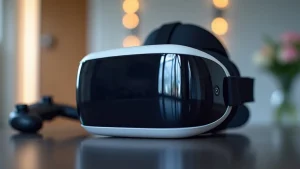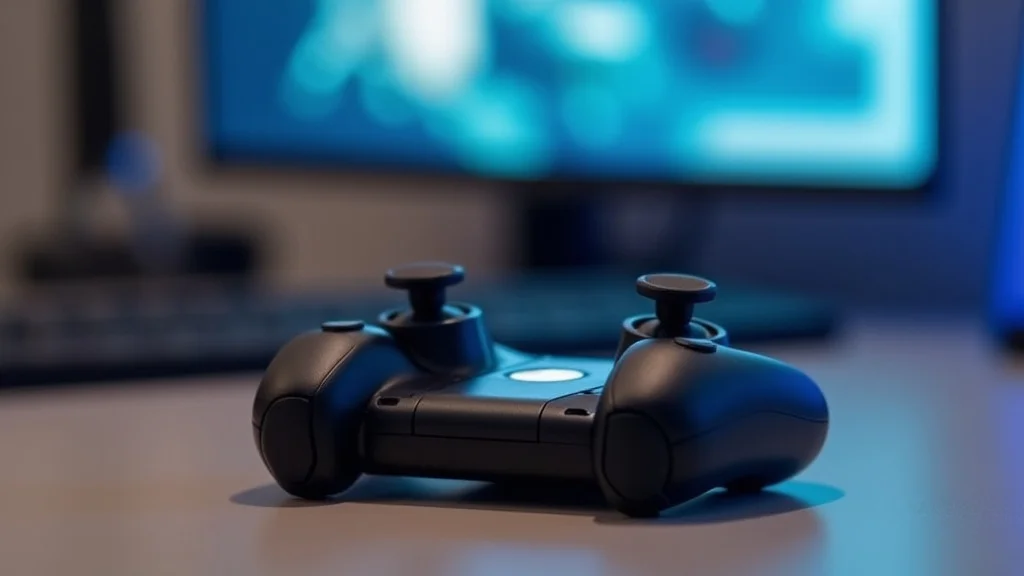
Picture this: You’re in the middle of an epic virtual reality adventure, sword drawn, ready to conquer a dragon, and suddenly. your VR controllers die. The immersion shatters, the game pauses, and the magic fades. Frustrating, right? This guide helps you avoid that exact scenario. We’ll explore everything you need to know about how to charge VR controllers properly, so you can keep gaming without interruption. By the end, you’ll have the knowledge to keep your controllers powered up and ready to go, improving your overall VR experience.
Key Takeaways
- Learn the different charging methods for various VR controller types.
- Understand the importance of choosing the right charging accessories.
- Discover tips to extend your controller’s battery life.
- Find out how to identify and solve charging problems.
- Explore safety precautions to protect your controllers and devices.
- Get answers to frequently asked questions about VR controller charging.
Understanding Different VR Controller Types and Charging Needs
The world of virtual reality offers a diverse range of gaming experiences, and the controllers used to facilitate these experiences are equally varied. Each type of VR controller, whether it’s for a high-end VR system or a more accessible headset, has its unique charging requirements. These variations are important to consider to ensure you always have power when needed.
Types of VR Controllers
VR controllers differ based on the VR system they are used with. Understanding the specific type you have is the first step toward effective charging.
- Standalone VR Controllers: These are usually wireless and come packaged with standalone VR headsets. They rely on rechargeable batteries and often charge via a USB connection. A common example is controllers that come with standalone Meta Quest headsets.
- PC VR Controllers: These controllers connect to a PC via a cable or wireless connection to transmit data. They often have more advanced features for complex gameplay, which typically leads to higher power consumption. Charging varies from wired to proprietary charging docks. Examples include Valve Index controllers.
- Controller Accessories: Some players enjoy accessories to enhance their gaming. These include charging docks, battery packs, and specialized grips. These accessories are designed to streamline the charging process or extend the battery life of the controllers.
Standalone controllers offer the convenience of built-in tracking and processing, reducing the setup needed. They’re designed for mobility, allowing users to move freely without being tethered to a PC. Charging is typically simple, often using a standard USB cable, making it easy to maintain power. These controllers contribute significantly to the immersive VR experience.
PC VR controllers are designed for use with high-powered VR systems, offering advanced tracking capabilities and tactile feedback. Because they have to manage tracking, haptics, and sometimes even complex user interactions, PC VR controllers often require more power. Their charging can be more complex, sometimes requiring specialized docks or adapters.
Controller accessories help tailor your VR experience. Charging docks simplify the charging process by providing a central location to store and power your controllers, while battery packs offer extended play sessions. These accessories are helpful to maintain an enjoyable gaming experience.
Charging Methods Overview
The methods to charge VR controllers vary based on the model and manufacturer. Knowing how your controllers are designed to charge helps extend their battery life. Most controllers use a USB connection, while others have alternative methods.
- USB Charging: This is the most common charging method. Using the provided USB cable, you connect the controller to a USB port on a PC, wall adapter, or charging station.
- Charging Docks: Many VR systems and accessories offer dedicated charging docks. These docks usually charge the controllers using contact pins. Place the controllers into the dock for convenient charging.
- Battery Packs: Some controllers use removable batteries. Players may use external battery packs that extend playtimes.
USB charging is a universal method due to its widespread compatibility. The charging rate depends on the USB port’s power output and the controller’s charging design. This is an efficient, safe method for most controllers, offering ease of use and adaptability.
Charging docks enhance the user experience by offering a place to store and charge controllers. They keep the VR setup organized while allowing you to charge the controllers without dealing with cables. Some docks may show the charging status, and they’re especially convenient for players who want to keep their controllers ready.
Battery packs enhance the functionality of VR controllers, letting players game longer. Replaceable battery systems provide freedom and comfort, reducing downtime and providing longer VR sessions. This is especially advantageous for longer gaming sessions.
Choosing the Right Charging Accessories
Selecting appropriate charging accessories is critical for VR controller health and efficiency. These accessories improve the longevity of your controllers and prevent charging-related problems. Here’s what you need to consider when picking charging accessories.
USB Cables and Wall Adapters
The quality of your USB cable and wall adapter impacts charging performance and safety. Choose accessories that meet your controller’s needs.
- USB Cable Quality: Use the USB cable provided by the manufacturer or one with reliable construction. Poor-quality cables may charge slowly or cause damage.
- Wall Adapter Specifications: Make sure your wall adapter matches the specifications of your controller. A wall adapter with the correct voltage and amperage rating will provide a safe and fast charge.
- Charging Stations: Consider purchasing a charging station designed for VR controllers. Charging stations allow you to store and charge your controllers, making it easier to keep your VR setup organized.
A good USB cable offers efficient charging. High-quality cables can ensure a steady power supply, helping to protect your controller’s battery from damage. These cables are designed to handle the power requirements, improving charging speeds.
The correct wall adapter ensures fast and safe charging of your VR controllers. Using the correct voltage and amperage rating provides protection for the controller’s battery and prevents overheating or damage. Using the correct adapter helps to maximize the battery’s lifespan.
Charging stations streamline the VR gaming setup. Charging stations provide a central location to store and charge multiple devices, offering convenience. They often have indicators showing the charging status of each controller, which is useful when preparing for a gaming session.
Battery Management and Protection
Proper battery management and protection ensure the long-term health of your VR controllers. Avoid practices that damage the battery and impact performance.
- Overcharging Prevention: Do not leave the controllers plugged in for extended times after charging. Many controllers have a built-in safety to prevent overcharging.
- Temperature Considerations: Avoid charging or storing your controllers in extreme temperatures. Heat can damage batteries.
- Battery Health Check: Some controllers or their accompanying software show battery health information. Use this to monitor the battery and understand its status.
Overcharging harms the batteries, reducing lifespan and performance. The built-in safety features in most controllers help prevent overcharging. Taking the controllers off the charger when the battery is full maintains their performance.
Extreme temperatures affect battery performance. High temperatures can cause battery degradation, while cold temperatures can reduce charging efficiency. Storing controllers in a moderate environment helps the lifespan of your controllers.
Checking the battery health of your controllers helps monitor their performance. Some VR systems have software that shows battery health and performance, which is valuable in understanding when replacements are required. This feature helps to ensure that your controllers will function during gameplay.
Extending Battery Life for VR Controllers
Maximizing the battery life of your VR controllers ensures uninterrupted gaming sessions. A few simple practices can make a big difference in how long your controllers last between charges.
Usage Habits and Settings
Your usage habits and the settings you choose can significantly impact the battery’s lifespan. Small adjustments can result in longer gaming sessions.
- Reduce Brightness: Lowering the brightness of the controller’s tracking LEDs, if adjustable, will conserve power. Many controllers emit light to help with tracking.
- Optimize Sleep Mode: Make sure the controllers go into sleep mode when not in use. Some controllers have automatic sleep modes to save power.
- Minimize Vibrations: Limit the vibration settings on the controllers. Vibrations use a lot of battery power, so reducing their intensity or frequency helps extend the lifespan.
Reducing the brightness of the tracking LEDs conserves battery power. Although this helps tracking in a dim environment, reducing the brightness will still allow you to play your VR games without running out of charge. Dimming the light will extend the gaming time between charges.
Sleep mode is a simple way to save power and extend the gaming session. If the controllers remain on, they continue to drain battery power. Putting the controllers into sleep mode when you’re not using them ensures they don’t consume energy, and sleep mode enhances battery life.
The vibration feature drains considerable battery power. Limiting the vibration, intensity, and frequency can result in extended battery life. Adjusting these settings during gameplay allows you to enjoy the immersion without sacrificing battery life.
Charging Best Practices
Practices related to charging also help extend battery life. Follow the best practices to get the most from the batteries.
- Partial Charging: It’s better to top off the batteries as needed rather than fully depleting them. Partial charging helps preserve the batteries’ capacity.
- Charge Cycle Consideration: Try to charge the controllers before they fully drain. Regular deep discharge cycles reduce the battery’s longevity.
- Regular Charging: If you don’t use the controllers for extended periods, charge them regularly to prevent complete discharge, which can harm the battery.
Full cycles stress the battery more than partial ones, and the best practice is to top them up when needed. Avoiding full discharges helps maintain battery health, allowing for longer play times. Avoid fully discharging the controller regularly.
Deep discharge cycles reduce battery longevity. Charging the batteries before they are fully drained helps maintain their capacity, ensuring that you can enjoy uninterrupted gameplay sessions. This helps maximize battery performance over time.
Regular charging keeps the batteries healthy, as leaving them discharged can damage them. Periodic charging maintains their health and performance. This practice is especially important for devices that are not used regularly, ensuring they are always ready.
Troubleshooting Common Charging Problems
Even with proper care, VR controllers may experience charging problems. Knowing how to diagnose and solve common issues is valuable.
Identifying Charging Issues
Identify the root of the problem by noticing the symptoms and testing the functionality of your devices.
- Failure to Charge: If the controller doesn’t charge, check the cable, adapter, and the charging port.
- Slow Charging: If the controllers take a long time to charge, it could be the cable, the adapter, or the charging environment.
- Battery Drain: The battery is draining quickly, even when not in use. This could indicate a battery issue or an energy-draining app.
Failure to charge is a common problem. Begin by inspecting the cable, adapter, and charging port for damage. If none are damaged, try different cables or adapters to rule out a faulty connection.
Slow charging can be the result of a variety of things. A cable can be damaged, or the charging adapter could be faulty. Check the device’s charging environment, ensuring it’s not too hot or cold.
Quick battery drain can indicate a damaged battery or software issues. Close unnecessary applications and run tests on the device. Replace the batteries as required.
Step-by-Step Troubleshooting
Use these steps to solve common charging problems. Following a methodical approach can isolate the root cause.
- Check the Connection: Make sure the USB cable is properly connected. Try a different cable if needed.
- Test the Wall Adapter: Try another wall adapter or USB port to make sure the adapter is functioning correctly.
- Inspect the Charging Port: Make sure the charging port is free of debris. Use a clean tool to gently remove any obstructions.
- Restart the Controller: Turn the controller off, then back on. This may fix any temporary software glitches.
- Contact Support: If the problem continues, contact the manufacturer’s support team. They can help diagnose hardware issues.
Checking the connection is the first step when troubleshooting. Try a new cable if the first one doesn’t work. Securely plug the cable into the VR controller and the power source.
Test the adapter with a known good device. If the adapter is faulty, it will be the source of your problem. If this resolves the charging issues, you know to buy a new adapter.
A dirty charging port will prevent a good connection. Gently remove debris with a toothpick or a small brush. If the port is dirty, it will prevent a secure connection.
Restarting the controller can clear temporary issues. Restarting is a quick and effective troubleshooting step. If the problem continues, proceed to other troubleshooting steps.
Contacting support helps resolve difficult problems. Provide detailed information about the issue so that support can offer effective solutions. They can help with issues such as a faulty battery.
Safety Precautions While Charging
Safety should be a top priority when you’re charging your VR controllers. Following a few simple steps can help prevent accidents and prolong the life of your devices.
Avoiding Hazards
Take precautions to avoid electrical hazards and property damage. Remember to take precautions during charging.
- Use Approved Chargers: Only use chargers and cables approved by the VR controller manufacturer.
- Avoid Wet Conditions: Charge your controllers in a dry place. Never charge them near water or in humid environments.
- Supervise Charging: Do not leave the controller charging unattended. Check the controllers periodically, especially during the initial charging period.
Approved chargers are tested for safety and compliance with the controller’s power requirements. Using unapproved devices increases the risks of damaging your controllers or causing electrical issues.
Wet environments can cause electrical hazards. Water and electricity don’t mix, and water can cause short circuits and electrical shock. Keep your chargers away from wet surfaces.
Supervising charging allows you to respond to unexpected issues. Periodic checks help spot problems like overheating or cable issues. Supervise charging to prevent potential hazards.
Protecting Your Controllers
Protect your controllers from damage to maintain their performance and lifespan. Simple steps can keep them working well.
- Proper Storage: Store the controllers at room temperature. This will help maintain battery health.
- Protect from Impacts: Keep the controllers safe from physical damage. Avoid dropping them or exposing them to excessive impacts.
- Regular Cleaning: Keep the charging port and the controllers clean. Clean the controllers with a soft, dry cloth and avoid liquids.
Proper storage prevents extreme temperatures, which can damage batteries. Extreme heat or cold affects the chemical composition of the batteries. Storing the controllers at room temperature keeps them functioning.
Protecting them from impacts prevents internal damage to the components, including the battery. Protect the controllers from drops and impacts to keep them working well.
Regular cleaning is a small thing you can do to keep your controllers working well. Clean the charging port regularly to remove debris that could interfere with charging. Avoid using liquids to clean your controllers.
Common Myths Debunked
There are many myths about charging VR controllers. Separating fact from fiction helps in proper controller care.
Myth 1: You Should Always Fully Charge Your Controllers
Reality: While fully charging controllers isn’t always bad, it is often better to partially charge them. Regularly fully discharging the battery can lead to a shorter lifespan. It’s often better to top up the charge when needed, avoiding running them down fully.
Myth 2: Leaving Controllers Plugged in Damages the Battery
Reality: Modern controllers have built-in circuits that stop charging once the battery is full. Leaving them plugged in generally won’t damage the battery. However, unplugging them once charged will keep them from unnecessary strain.
Myth 3: Fast Charging Always Hurts the Battery
Reality: While fast charging can generate more heat, modern batteries are designed to handle it safely. Fast charging can damage the battery if not done safely, and the battery is designed to handle it. Charging with the recommended accessories typically doesn’t harm the battery.
Myth 4: Using Any USB Cable Is Fine for Charging
Reality: Not all USB cables are created equal. Using poor-quality cables can lead to slow charging or even damage the controllers. Always use the cable that came with the device, or find another quality cable.
Myth 5: You Can’t Charge Controllers While They Are in Use
Reality: Many controllers can be charged while in use, but this might slow down the charging process. Always check the manufacturer’s suggestions, and consider whether the setup will get in the way.
Frequently Asked Questions
Question: How often should I charge my VR controllers?
Answer: It depends on your usage, but generally, charge them after each gaming session or when the battery indicator shows low power. Avoid letting the controllers drain completely before charging.
Question: Can I use a fast charger with my VR controllers?
Answer: Check your controller’s specifications. Some controllers support fast charging. Only use chargers recommended by the manufacturer to avoid potential battery damage.
Question: What do I do if my VR controllers aren’t charging?
Answer: Check the cable, adapter, and charging port. Try a different cable or adapter. If that doesn’t work, review the troubleshooting steps in this guide or contact the manufacturer for support.
Question: How long does it take to fully charge VR controllers?
Answer: The charging time varies by model and the charger’s output. Typically, a full charge takes 2-4 hours. Check your controller’s documentation for specific charging times.
Question: Is it okay to charge my controllers overnight?
Answer: Yes, most modern controllers have protection against overcharging. However, unplugging them once they’re fully charged is a good practice to prevent unnecessary strain on the battery.
Final Thoughts
Keeping your VR controllers charged is essential for an enjoyable gaming experience. We have covered the different types of controllers and their charging needs, providing a practical guide on choosing accessories. We have also explored various techniques to extend battery life, from using proper charging practices to troubleshooting common issues. Following these suggestions ensures smooth operation and extended gaming sessions. With the information in this guide, you have the knowledge to keep your controllers powered up and ready for adventure. Enjoy your virtual reality journeys, uninterrupted by dead batteries, and keep your controllers charged for fun.